TopBanner

Showing posts with label Lync_2013. Show all posts

First Picture of #Polycom CX5500 “Roundtable”IP #Lync Video & #SIP Audio Conference Station With It’s “CPU”


We have written about the CX5100 (USB)/CX5500 (IP) “Roundtable” devices before, but Graham Walsh posts the first picture of the Polycom CX5500 (SIP and Lync) IP video conference device with what appears to be the CPU beside it.

The CX5500 Unified  Conference Station, unlike the original “Roundtable” and it’s little sibling, the CX5100, is a standalone IP device that does not require a PC.

image

It appears that the CX5500 “CPU” has matching look: black with chrome, silver and red trim. (In a sense the CX5500 appears to be a CX5100 with touchscreen control and a “small PC” added)

image

Some of the known Polycom CX5500 Unified Conference Station’s features:

  • 1080p 30fps HD 360 degree Video
  • (5100 USB Only or 5500 as complete conference phone)
  • SIP HD Audio conference explained Click Here
  • New CX5500 Will Have a Touch Screen Interface (Click here)
  • Can optionally be Integrated with Lync Room System
  • Custom built for Lync 2013
  • Device physical design revamp from original “Roundtable”
  • “An all-new user interface”
  • New The CX5500 can be a “fully featured SIP conference phone”
    • So if you are not using Lync you can still use the CX5500 for audio conference (Click here)

Source:
https://twitter.com/Graham_Walsh/status/378104371692990464

#Lync Senior Product Marketing Andrew Cook: Microsoft Lync Is $1 Billion Business--By Itself

image

In an interview with Doug Green of Telecom Reseller recorded at ITExpo 2013 Las Vegas, Andrew Cook, Lync Senior Product Marketing Manager notes:

image

“We’re the newest $1Billion business at Microsoft,  there are 16 billion dollar businesses at Microsoft and Lync is one of them. I think we passed that in late May or early June (2013)…”
–-Andrew Cook, Senior Product Marketing

Doug Green notes:

“If Lync was its own company…that would make you [Lync] among the largest companies in the UC space...”

Andrew Cook’s thoughts on WebRTC:

  • WebRTC is a huge & hot topic
  • It’s not a standard yet
  • Start trying it out
  • It’s not going to revolutionize anything
  • Expect to see Lync WebRTC Meeting Join
    • Cook quote: “In the end, what we’ll probably see, (and I’m not promising anything) if a user wants to join a meeting using WebRTC we’ll do that, if not they can join via the Lync Web App…and do it that way…”

Cook’s thoughts on WebRTC are certainly not new as Derek Burney, Corp. VP Microsoft Lync, noted this back in March 2013 at Enterprise Connect 2013 keynote Q&A:

“…the Microsoft Lync Web App uses a plugin today. Microsoft will support webRTC as soon as the standard is ratified. This is a super exciting initiative.”

While we do not hear much industry buzz around Microsoft Lync and WebRTC, we’ve now heard Microsoft convey that WebRTC is likely in the Lync Server future.

Listen to the Whole Podcast over at Telecom Reseller: Click Here
Tom Arbuthnot: Click Here

#Lync Server 2013 CU July 2013: New Feature List, Fixes and How To Update

Lync Server 2013 CU July 2013 has been released. It looks like it will be a combination of fixes and some interesting upgrades. Since the Microsoft update pages do not give detailed list of new features we plan to add them below as we note them.

New Functionality

Web Client Gets Conferencing Q&A: Click Here for complete article…
1
via BibleIT

Persistent Chat Gets Resource Kit Tools: Click Here for complete article…

image

Microsoft Support Link: http://support.microsoft.com/kb/2819565

What the update fixes and updates

http://www.ultimate-communications.com/2013/07/lync-server-2013-cumulative-updates-july-2013-version-just-hit-the-intrawebz-extras/
http://www.proexchange.be/blogs/lync2013/archive/2013/07/02/lync-server-2013-cumulative-update-july-2013.aspx

How to Install and Install Tips

https://greiginsydney.com/lync-server-2013-cu2-july-2013
http://www.bricomp.com/blogs/post.cfm/microsoft-has-released-cu-july-2013-for-lync-server-2013

Lync 2013 for Windows 8 Gets an Update: Anon Meeting Join, Click to Dial, Improved Presenting & More


Lync 2013 for Windows 8 gets a few new features

  • Join Meetings anonymously
    • Can now be used as an unauthenticated Lync Attendee client
  • Tab to see upcoming meetings
  • Snapview has more functionality
  • Browse someone else’s shared slides
  • Take over as presenter
  • Click to dial from Win8 Browser
  • Change speed of voicemail playback
  • HIgh-contrast support
  • More reliable signon


Official Technet Blog on new features:
http://blogs.technet.com/b/lync/archive/2013/06/25/update-lync-windows-store-app.aspx

Johan Delimon over a Pro-Exchange does an overview of the new Lync app features:
http://www.proexchange.be/blogs/lync2013/archive/2013/06/25/update-for-lync-app-in-windows-8-store.aspx?utm_source=dlvr.it&utm_medium=twitter

Get It Hear

What Would Lync 2013 Mobile Look Like Running on $199 Nexus 7?


Lync 2013 Mobile is not supported on Nexus 7 and thus you will not find it on Google Play. But what would it look like if you went in “experimental mode” and installed the .APK on the Nexus 7? Take a look below.

Pros

  • Very low cost Lync video endpoint

Cons

  • no ear piece on the device
  • Notice the dialer screen the buttons do not line up with touch sometimes

Get apk: click here

You may have interest in my review of Lync 2013 Mobile for Android Review:
http://windowspbx.blogspot.com/2013/03/lync-2013-mobile-for-android-first-look.html

Lync 2013 Mobile for Android First Look


image

Lync 2013 Mobile for Android is available on the Google store. Below is our first look and photo tour of the app. At the end of this photo tour I have written my notes and thoughts. Enjoy.

Status Screen:
image

Voice Calling Screen

image

dtmf dial pad during a call

image

Dialer

Set Status

Instant Message

image

IM using Android Speech recognition (very nice)

image

Making a call from Android Contact List you are given a choice of which app to use. Lync 2013 Mobile is among this list.

Video Call (this is a video call to a Lync 2010 user)

image

Video Call: You can switch cameras and orientation mid call.

image

Incoming Call

image

Settings

Call forwarding

Landscape works in all screens fine. Notice the buttons at the top get smaller

Call Via Work Call back (it doesn’t appear the user can select call-via-work versus voip at dial time like Windows Phone)

image

Swipe to get to IM from a Voice/Video call

image

New modality request

image

Call History: Notice the little “1” on the conversation history “tab” indicating 1 missed call.

image

Not connected” indication

image

Both Lync 2010 and 2013 can be installed and (it seems) run at the same time. Do note that Lync 2013 will not work with Lync Server 2010.

Some Things I Noticed:

  • You can swipe as well as tap between screens (not possible on Lync 2010 Android)
  • Entire app is VERY snappy on my Nexus 4
  • You can sync Lync contacts to your Android device
  • You cannot search Android contacts from Lync (not a big deal because you can dial from Android contact list)
  • Even if you exit Lync from App Switcher, incoming calls will come through
  • NOT supported on Android tablets
  • Contacts added on Lync 2013 (PC) will show up immediately
  • Lync dialer does not normalize number
  • NOTE: Appears there is no way to initiate multi-party IM from this client (Is this correct?)
  • No Visual Voicemail

Observations

  • The app is VERY snappy on my Nexus 4
  • Seems like the Lync 2013 Mobile for Android is ever so slightly more basic than iOS and Windows Phone Versions of Lync 2013 Mobile (but still great app)
    • No way to select Call-Via-Work versus Voip at time of call
    • Can’t search device contacts from Lync App (in fairness Lync contacts are added to Android contact list as an alternative)
    • No Visual Voicemal
  • Overall very nice app

More Detailed NotesAlso, you may want to read this blog article that answers in detail, a variety of call situations and how Lync 2013 Mobile (not android specifically) handles them.

  • Question Your Users Will Ask About Lync 2013 Mobile: Click Here
  • Which Android Devices Will Lync 2013 Mobile Run On? Click Here

Get Lync 2013 Mobile for Android Click Here:

<end>

Lync 2013 Mobile is *NOT* supported on tablet. But what does it look like on a bigger form factor device?

Audio call

image

Video

image

conversations

image

Instant Message thread

image

Contacts Screen

image

Dialer

image

apk: click here

Nexus7 ($199) + HTC Mini (?) + Lync 2013

Group Call Pickup Coming to Lync Server 2013 in CU1 Update: Here’s How It Will Work

Roy Kuntz noted in his Lync Conference 2013 “Deploying Voice” session today that Lync Server 2013 will get Group Call Pickup functionality as part of CU1 update. Since this is one of the top requested features on http://lync.ideascale.com this is very welcome news.

I caught up with Roy in the Lync Conference Lounge afterwards and we chatted about the details of how Group Call Pickup will work in more detail. Below are some of my notes: (note: I didn’t test or see the feature, so I’m going on what I’m told here)

  • Setup
    • Call Park Ranges will be used to define Group Call Pickup. Admins can check a flag when setting up a Call Park Range and then the range will be used for Group Call Pickup instead of a Call Park.
    • Lync Management Shell is used to create groups and add/delete/move users. (source: MicrosoftUC Blog)
    • A new version of the SEFAutil is used to assign users to the groups. (source: MicrosoftUC Blog)
    • Detailed Setup Steps: Click Here
  • How To Use
    • When a phone is ringing, dial the Park/Group Call Pickup number assigned to that extension to pick it up.
    • The original ringing user will get a missed call notification from Exchange UM. (source: MicrosoftUC Blog)
  • How Group Call Pickup (GCP) Works Behind the Scenes
    • An incoming call going to a user that is part of a GCP will ring the user and simultaneously be automatically placed in a Call Park.
  • Various Notes:
    • More than one Group Call Pickup per FE Pool can be defined
    • SEFAUTIL will be used to administrate the Group Call Pickup
    • If an extension is assigned to a Group Call Pickup, anyone will be able to pick it up as there is no authorization needed to pick it up.
    • All users need to be homed on a Lync Server 2013 with CU1 applied to use GCP feature. (source: MicrosoftUC Blog)
    • Feature noted to work with Lync 2010, Lync 2013 & Lync Phone Edition (really should work with any endpoint)
    • This feature is designed to work in scenarios where a user can *hear* the other phone ringing. The reason for this is that Lync has no concept of “Ringing” presence state that users can see. (I have argued for the need for such a state for dynamic/fluid/fast-paced voice scenarios, but at this time there Lync does not have one)

Session Slide Screenshots: Architecture

image

Planning Slide

image

What If I Don’t Have Lync Server 2013?

While you need Lync Server 2013 with the coming CU1 to get this feature as part of Lync, there are 3rd party products that bring this feature to Lync Server 2010. I would suggest looking closely at Cerebro from Colima. For video of these 3rd party call pickup options see: http://windowspbx.blogspot.com/2012/04/lync-call-pickup-feature-provided-by.html

Other Sources:
http://blogs.technet.com/b/cs2010/archive/2013/02/22/call-pickup-in-lync-2013-cu1.aspx

Microsoft Lync 2013 Availability and Pricing: Dec 1, 2012 and Lync Standard Edition to Increase Dramatically


Lync2013-priceincreaseJust this morning our Microsoft Licensing specialist/TPAM, Jessica Harrison, gave us a heads up that Microsoft Lync 2013 licensing will be available December 1, 2012 and noted some pricing changes.

A couple things to keep in mind:

  • All Lync User CALs will be increasing 15% on December 1, 2012
  • Lync Server 2013 will be a MSRP of $3,646 USD (with no price distinction between Enterprise and Standard Server)
  • This means that after Dec 1, 2012, Lync Standard Edition pricing will effectively go from $695 USD to $3646 USD (Open Business Standard)
  • [update] External Connector License for Microsoft Lync Server 2013 is no longer needed.
    • “With the 2013 versions of Exchange Server, Lync Server and SharePoint Server, we are consolidating the right for External Users to access the server under the server license assigned to the server on which the software runs.” Source: http://linkd.in/UpT8pk
  • The new Lync 2013 Basic client (slim version) appears to have no SKU (there is now a Lync 2013 PC client (full featured) and Lync 2013 Basic PC client (slim/limited features)) 

Other Questions

  • Q. Will Microsoft Lync SBA (Survivable Branch Appliance) pricing change?
    • A. At this time our SBA vendors have not noted any pricing changes in relation to Lync 2013 SBA.
  • Q. Will Microsoft Lync 2013 Basic (as opposed to Lync 2013 full PC client) be free?
    • A. At this time there appears to be no SKU for Lync 2013 Basic.

Actions You Should Take:

  • If you were planning to buy Microsoft Lync Server Standard Edition: Order Open Value or Open Business with SA Licenses before November 25, 2012
  • If you want Landis Computer Technology Solutions to help you get Lync Standard at current prices before November 25, 2012 increases, fill proposal request form: click here.

728x90_LyncPriceIncrease

Why the increase in Lync Server 2013 Standard Edition licensing? (I am not Microsoft, so don’t beat the messenger and below is my attempt at a guess at a rational)

  • Could be explained by Microsoft as simplifying Lync Server licensing? (okay, that was weak)
  • Lync Server 2013 does add enhanced failover features that make it much simpler to have a SE FE failover to a Backup FE SE (Click Here for Detailed Explanation)

Lync Server 2013 Standard and Enterprise:
http://technet.microsoft.com/en-us/library/gg417160(v=ocs.15).aspx

Lync Server 2013 Available on Volume Licensing price list December 1, 2012:
http://blogs.office.com/b/office-news/archive/2012/10/11/office-reaches-rtm.aspx

Step by Step: Adding Your Second Lync Standard Edition Server 2013 & Creating an Associated Backup Pool for Resiliency Part 4

We are on a journey installing various Lync Server 2013 roles. In today’s step by step, we will setup our 2nd Lync Server Standard Edition pool and then set it up as a Backup Registrar so automatic failover can happen. We will also look at Lync Server 2013’s new failover capabilities that allow full client capability to be restored in the event of a disaster. To use this blog the only other lab you need to have done is Part 1.

Previous Articles in this Series:

Prepare the 2nd Front End Server: Prerequisites

See Lync Server 2013 prerequisites here. Installing your 2nd Lync Pool is much like installing the first. We will go over the steps below briefly, with special notes. But for detailed notes on installing an FE server, just refer to the Part1 blog in this series.

Install Lync Server 2013

Insert Lync Server 2013 CD, and when you see popup below, click Yes

c-install-note_thumb

Once the Deployment Wizard appears we are done here for now.

deploy-fresh_thumb2

Open Topology Builder to Add Your 2nd Front End Server/Pool

Right Click on “Standard Edition Front End Servers” | New Front End Pool

NOTE: While the topology builder and this blog refer to a Standard Edition Front End Pool, just be aware that a Standard Edition Front End Pool really is just one Front End Server, because there only can be one server in a Standard Edition Pool.

topology-new-front-end_thumb2

Next | Enter our Backup Front End FQDN (FE02.lab.local) | Next

fqdn-pool_thumb2

Check Conferencing, Enterprise Voice. (Note: you will not be able to check CAC because only 1 per Site)

pool-options_thumb2

Now instead of screenshots for each screen, we’ll just note what we want to check.

  • Collocate Mediation = Yes | Next
  • Enable and Edge Pool = No | Next
  • let defaults | Next
  • let Defaults (Note: you need to create this share just like your original share) | Next
  • let defaults | Next
  • let defaults | Next
  • Action | Topology | Publish

Goto the Primary (FE01.lab.local) Standard Server and Open Lync Server 2013 Deployment Wizard

Click on “Install or Update Lync Server System”

step 2 and Run

After it completes, click Finish.

Now Goto the Backup (FE02.lab.local) Standard Server and Open Lync Server 2013 Deployment Wizard

Click on “Install or Update Lync Server System”

  • Step 1 Run (15-30minute wait) Finish
  • Step 2: Run | Next (10minutes wait)
  • Step 3
  • Step 4

We’ll Test Our 2nd Pool/Server By Moving Users to It

To test, log into Lync Server control panel. Notice you will now be asked which Lync pool you want to log in to. Let’s select FE01.lab.local.

lscp-which-fe-pool-login_thumb2

Once the LSCP is open well click Users | Find | Select u1@lab.local | Action | Move Selected Users to Pool… |

move-users_thumb2

Now lets select our new Pool/Server (FE02.lab.local) and click OK.

select-pool_thumb2

After you move a user there is no need to refresh the user list, this is automatically done for you. And, sure enough, the u1@lab.local is now on FE02.lab.local! Great.

user-moved-to-fe02_thumb3

Now lets open Lync 2013 client and login using user u1@lab.local that we just enabled on our 2nd Standard Edition Front End Pool/Server (FE02.lab.local). Good, our new pool works!

What Happens when we change Pools During an Active Conversation or Call?

Since we could easily move user(s) to our new Pool/Server with no sweat, now lets get dangerous. Call someone using u1@lab.local and CHANGE POOLS DURING THE CALL. Winking smileLet’s repeat the steps we just took above, but do it during a live call and see what happens.

Below is a screenshot of what happens if you change pools/servers during a peer to peer call:

  • The Lync 2013 client will momentarily logout and back in again
  • During this time (as you see below) the call continues
  • Sharing continues
  • Video continues
  • As noted in the conversation window, functionality is momentarily limited:
    • Video cannot be started during momentary logout/in
    • Sharing limited and below items will be interrupted
      • Polls
      • whiteboard
      • Powerpoint

audiocall-during-pool-change_thumb1

That’ pretty cool, right? Yeah.

Setup a Resilient Pool (aka Associated Backup Pool)

Now let’s setup our 2nd Front End Pool/Server as an Associated backup pool so that if our 1st Front End Pool goes down the clients can automatically failover to the 2nd Front End Pool.

Open Topology Builder and download the topology.

Next, we’ll edit the primary “Standard Edition Front End Servers” by right clicking and click “Edit Properties”

edit-fe01-backup-pool_thumb2

Now we can define our Resiliency settings

  • Associated backup pool = FE02.lab.local; (Note the warning about having both FE’s in the same site. For our lab, and in some production we can ignore this)
  • Automatic = Checked
  • Failover = 30secs (for lab purposes, this would be short for production…)
  • Failback = 30secs (for lab purposes)
  • Then click OK to finish.

resiliency-settings_thumb2

Let’s Publish the Topology by clicking: Action | Topology | Publish | Next |

Open text file to see what you should do next. In our case we are instructed to run Install or Update Setup/Update on FE01 and FE02. Now click Finish.

finished-topology-publish_thumb2

Based on our “next steps” instructions noted above, lets open Lync Server Deployment Wizard on FE01.lab.local and click on “Install or Update Lync Server System”

  • Step 2 Run | Next |Next
  • Step 4 Run | Next | (this will get our new Lync server Backup Service running)

Lets open Lync Server Deployment Wizard on FE02.lab.local and click on “Install or Update Lync Server System”

  • Step 2 Run | Next
    • NOTE: If Step 2 fails with “Can not update database XDS”  error then we need to manually install the rtc database using the PS command below:
    • install-csdatabase –centralmanagementdatabase –sqlserverfqdn FE02.lab.local –sqlinstancename rtc
    • Now run Step 2 again.
  • Step 3 (if necessary)
  • Step 4

Run the below Powershell commands on your FE01.lab.local to ensure conferencing data is replicated:

  • Invoke-CSBackupServiceSync –PoolFqdn FE01.lab.local
  • Invoke-CSBackupServiceSync –PoolFqdn FE02.lab.local

Add DNS SRV Record for Backup Pool/Server

Now lets go into DNS and add a record for our Backup Pool /Server. This SRV record is necessary so that if the first server (FE01.lab.local in our lab) goes down, the client can find the backup Pool/Server.

So let open the DNS server management and add the SRV record. The things that are important:

  • Service = _sipinternaltls
  • Protocol = _tcp
  • Priority = 10 (take note: this value is different than your initial SRV record)
  • Weight = 10 (take note: this value is different than your initial SRV record)
  • Port number = 5061
  • Host offering this server = FE02.lab.local

backup-sipinternaltls_srv_record_thu

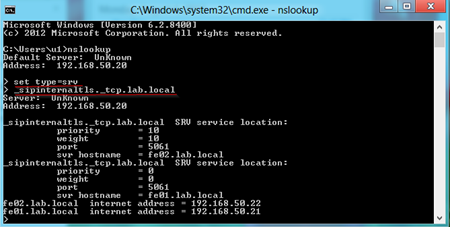
After you have added this DNS record you might want to verify it has taken effect on the client PC by running NSLookup on the clients you will be testing.

  • NSLookup
  • set type=srv
  • _sipinternaltls._tcp.lab.local

test-that-srv-is-working_thumb3

You Might Need This Step, But Only do it if Needed: Remove The Cert Without the Backup Server Name in it

NOTE: Please, take a minute and thank Dustin Hannifin and Jason Lee for providing this crucial step in this blog post. Winking smile

With both Primary and Backup Front End Server running do the following:

Exit Lync 20013 client on client machine.

On same client machine: Open MMC

File | Add/Remove Snap-in… | Certificates | My User Account | Ok

Navigate to: Personal | Certificates and delete the cert named same as your Lync username.

delete-certificate_thumb2

Now let log back into Lync 2013 client.

Now, Let’s Test Resiliency by Disabling NIC on Primary Front End (FE01.lab.local)

Make sure all your users (that you want to test resiliency for) are homed on FE01.lab.local. Next, we’ll simulate our FE01.lab.local machine being down by disabling the NIC.

diable-nic_thumb2

Now around 30 seconds, our client(s) should log out. Sure enough!

logout-at-30seconds_thumb1

Now they will try to login to the backup pool (in this case FE02.lab.local)…

NOTE: We setup our failover to happen in 30seconds. I’ve noticed in my lab the failing Lync clients will logout very near 30 seconds, but it could take several minutes till the clients are able to log back into the Associated Backup Pool/Server (FE02.lab.local). (ie: be fully failed over) I haven’t taken the time to investigate if this is my lowly lab’s performance Winking smile, or something built into Lync. (if someone knows, please post a comment)

But sure enough, it logged into backup pool! You will notice the Lync 2013 client let’s you know you have some limitations:

  • Contact List is unavailable
  • Call Forwarding may not be working
  • Delegates and Team-Call may not be receiving calls
  • Limited chat room access
  • Etc.

logged-into-backup-pool_thumb3

Now if we enable the NIC on FE01.lab.local the clients should Failback to FE01.lab.local in 30 seconds. (NOTE: on my lab some clients would failback as soon as 10 seconds.)

Next We Will Take a Look at New Lync Server 2013 Failover Options

Much of what we have discussed in this blog so far is largely the functionality you will find in Lync Server 2010. (I suspect you could use most of the above steps in Lync 2010.) But with Lync Server 2013, the Lync Server administrator can now failover the CMS and the failed pool so that the “Limited Functionality due to outage” is removed. Let’s get started with our failover.

Our first step is to find out where the Active Central Management Database is hosted. To do this we run the PowerShell:

  • Get-CsService –CentralManagement

As shown below, FE01.lab.local is the PoolFqdn (we will refer to this as $CMS_Pool) of the currently Active CMS.

get-csservice-active-cms

The next step is to check if the the $CMS_Pool is running Lync Server 2013. You can do this in Topology Builder (in our lab we know it is, but in a live environment we might not) If the $CMS_Pool is running Lync 2013 we can use this PowerShell to see who it’s backup pool is:

Get-CsPoolBackupRelationship –PoolFQDN $CMS_Pool

As shown below we can see the $Backup_Pool is FE02.lab.local

get-cspoolbackuprelationship

Next we will see if the $CMS_Pool is available right now:

Get-CsManagementStoreReplicationStatus –CentralManagementStoreStatus

Below we have an example how this command will look with the $CMS_Pool available.

replication-status-with-cms-available

Now lets disable the NIC on $CMS_Pool (ie FE01.lab.local) to simulate server down. Our primary Lync FE is now down! (shown below)

smoking_drive

Now run the Get-CsManagementStoreReplicationStatus –CentralManagementStoreStatus  command again. Note that the command will fail/error out if the $CMS_Pool/FE01.lab.local is not available.

(NOTE: If this is a Ent. Edition server you will need to check which Back End holds the primary CMS using: Get-CsDatabaseMirrorState -DatabaseType CMS -PoolFqdn <Backup_Pool Fqdn> . Read more about this command by Clicking Here. Running this command on Std. Edition will fail. On a Std. Edition server there is only one server so we know which it is. )

Next we will run the command to failover the Central Management Server to our Backup Server:

  • Invoke-CsManagementServerFailover -BackupSqlServerFqdn FE02.lab.local –BackupSqlInstanceName RTC –Force
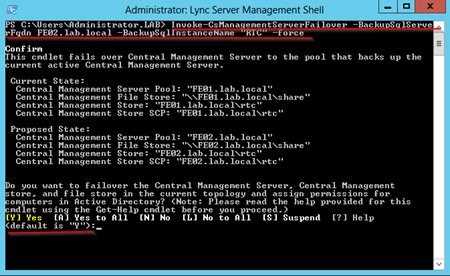
invoke-cmsfailover

Now lets verify the move happened by running:

  • Get-CsManagementStoreReplicationStatus –CentralManagementStoreStatus

Sure enough! the new ActiveMasterFQDN is now FE02.lab.local (as shown below). Great!

verify-that-cms-moved-to-backup

Now we can fail over the Pool by running:

  • Invoke-CsPoolFailOver –PoolFqdn FE01.lab.local –Disastermode –Verbose

After running…Voila! The Lync Client services are automatically restored to Lync 2013and the “Limited Functionality” notice disappears with no user interaction!

full-lync-services-restored

Notes:

  • On my 3 user lab this script took about 50 seconds to complete. After it completed I waited a little over a minute until full capability was restored to the Lync client!
  • The Chat service was not restored because resiliency was not setup in our lab for this service.

Conclusion

Well--yahoo! We have successfully setup a Lync Standard Edition Associated Backup Pool and we have demonstrated Lync Server 2013’s very improved complete Failover resiliency.

Continue your lab with more articles in this Lync Server 2013 Step by Step Series:


Special Thanks to Elan Shudnow and his great article on Lync 2010 Resiliency:
http://www.shudnow.net/2012/05/04/lync-2010-central-site-resilience-w-backup-registrars-failovers-and-failbacks-part-3/

http://social.technet.microsoft.com/wiki/contents/articles/9289.second-lync-standard-edition-server-to-provide-a-limited-high-availability-en-us.aspx

http://jasonmlee.net/archives/459

If you want to Fail Back to FE01.lab.local

  • Invoke-CsPoolFailback -PoolFQDN FE01.lab.local –Verbose  (may take 10-15minutes; Lync will logout/in near end)
  • Invoke-CsManagementServerFailover -BackupSqlServerFqdn FE02.lab.local BackupSqlInstanceName RTC –Force ( this just takes 10secs)