TopBanner

Microsoft Lync Attendant 2010 Causes Lync SDK to be Unstable

If you are having a problem running a Lync SDK based application you may need to uninstall Microsoft Attendant 2010 and repair Office.
  • Is Attendant 2010 installed on this computer? If it is, uninstall it.
  • If Attendant 2010 has been installed on this computer in the past, perform a repair install of Office 2013. You can do this in Programs and Features in the control panel.
Go to Add/Remove Programs (Office) | Change

If Office installed from MSI = Click “Repair”


If Office (Office Online) installed using ClickOnce = Click “Online Repair”
Att37D9.tmp.tmp

Skype for Business User QuickTip #38: Login to Skype4B More Than Once on the Same PC

The Skype for Business Web SDK brings a whole new realm of possibilities to Skype for Business and this is likely the least exciting, but…for those who have been asking for it: You now have a way to run Skype4B multiple times on the same machine!
The Skype Web SDK has a “Samples Preview” which is a barbarically simple Skype4B client, which, from my simple tests allows you to open multiple browser windows and login in as separate users.
image
How to get the Skype Web SDK:
https://msdn.microsoft.com/en-us/library/dn962133(v=office.16).aspx
See the other Skype for Business User QuickTips (formerly known as Lync)
http://windowspbx.blogspot.com/search/label/LyncUserTip

Skype for Business User QuickTip #37: Did You Know You Can Change Where Notification Toasts (Alerts) Display?

Did you ever wish you could change where on a monitor and on which monitor conversation toasts (alerts) displayed? With Skype for Business client you now can.

image

In the Skype for Business client just click on Options | Alerts and change “Where should alerts appear?”

image

See the other Skype for Business User QuickTips (formerly known as Lync)
http://windowspbx.blogspot.com/search/label/LyncUserTip

Skype for Business User QuickTip #36: Everything You need to Know About “Call Monitor”


Skype for Business has introduced a new feature called “Call Monitor”. What is it? It is a panel that shows when the active conversation window is minimized and always shows on top so you don’t lose the ability to control an active call.

With Call Monitor you can mute and hang up a call with a click. (now you can always find Mute in time to hide a sneeze!) You can also see the name and picture of the caller and a timer of current call length. (below)imageEver “lose” the active conversation window among your many open windows? Just click anywhere (but the title bar) to bring the active call window to the front and focus. (below)

image

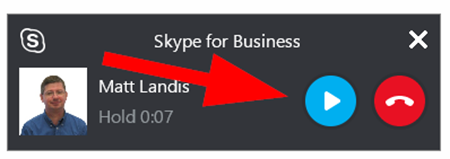
You can’t place a call on Hold from the Call Monitor window, but you can Resume a call that was placed on Hold prior from the active call window. When a call is on hold the timer switches to how long this call has been on hold.image
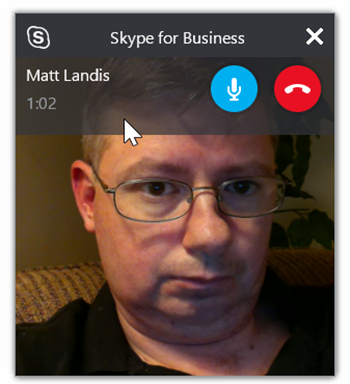
If you have a video going, the Call Monitor will show the video. The controls (name, timer, mute and hang-up) will only be shown when you mouse over the video (or picture if video has been stopped). I’ve noticed that if you start a video then drop to audio only, the larger/video format remains.
image

You cannot “mute” video from the “Call Monitor”, but you can from the active conversation window. If you do the active speakers’ picture will be shown.

image

In conference calls Call Monitor shows the active speaker.

When you have 2 calls in progress (1 active, 1 on hold), you need to find the conversation window of the call that is on hold (Call Monitor won’t help because it isn’t the active call) and resume the call.

Of course, if you don’t like the new “Call Monitor” feature, you can turn if off by going to Options | General and unchecking “Show call controls when Skype for Business is in the background.

image


If you would like a Call Monitor that is focused on making handling voice calls even more efficient, works on Lync and Skype for Business and more features, take a look at the free Technet Gallery “Call Monitor Pro” application:
https://gallery.technet.microsoft.com/office/Call-Monitor-Pro-Community-e30e71b8

https://support.office.com/en-nz/article/Lync-is-now-Skype-for-Business-%e2%80%94-see-whats-new-aba02d7e-c801-4a82-bccd-e7207240f612?ui=en-US&rs=en-NZ&ad=NZ

Skype for Business User QuickTip #35: Sharing a PowerPoint Presentation to a Meeting from PowerPoint

Did you know you share a PowerPoint to a Skype for Business Meeting that is in progress? It’s pretty simple, in PowerPoint:

From the SlideShow Tab click Present Online!

image

-or- File | Share |  Present Online

image

(this is the same place that you can broadcast a PowerPoint slideshow. See my previous blog click here)

image

Now you can choose a Skype for Business (or Lync, it works with Lync as well)

image

See the other Skype for Business User QuickTips (formerly known as Lync)
http://windowspbx.blogspot.com/search/label/LyncUserTip