
Note: This article is as of Sonicwall Firmware version: SonicOS Enhanced 5.8.1.8-xx
I’ve been spending the last couple days on and off getting familiar with Sonicwall VoIP features. since there are lot of Sonicwall devices in the field you most likely are going to meet up with one sooner or later. (and this will only get worse with Dell’s acquisition of Sonicwall I suspect) Another challenge is that most Sonicwall engineers are not spending their days thinking about VoIP, much less Microsoft Lync and SIP over TCP.
What is a Good Way to “Ramp Up” understanding the Sonicwall NAT Configuration process?
This is the exact question I had. I’ve noticed that googling seems to often return old Sonicwall HowTo’s that are a bit hard to follow since the older Sonicwall firmware is just a little different looking. I came across this short PDF manual that I think encapsulates doing simple tasks in Sonicwall well:
http://www.sonicwall.com/downloads/SonicWALL_TZ_210_Series_Getting_Started_Guide.pdf
Can Sonicwall do SIP ALG for Microsoft Lync? No.
The simple answer is that Sonicwall firewall VoIP features only work on SIP UDP traffic, not TCP traffic that Microsoft Lync uses. (This does not mean that Sonicwall will not work with Lync, it just means that there is no need to try to use the Sonicwall VoIP features with Lync at this time.)
Want a source? Open this document and notice on page 15 that you can set another SIP signaling port if it is not the standard 5060…but only for UDP traffic…and Microsoft Lync uses TCP for signaling. (shown below)

If you want to do some more reading about the Sonicwall VoIP module click here.
Why are Lync Calls Not Shown on the “Call Status” Screen?
The reason Lync calls are missing from the “Call Status” screen is because Sonicwall (as noted above) only displays UDP VoIP calls here and Microsoft Lync uses TCP for call signaling.

How Shall I Configure the the VoIP Settings Screen?
“SIP Transformations” is Sonicwall’s language for what many others call ALG. Should this be turned on or off?
Actually, it doesn’t matter at ALL how you set these items because Sonicwall firewalls can only do “Enable SIP Transformations” (aka ALG, or VoIP/SIP ALG) on UDP traffic and Lync only uses TCP.
So don’t sweat it and you can ignore all the dire warnings on forum posts that tell you to turn these settings off. (grin) Well, just to be safe…let’s uncheck them. (just in case some future firmware upgrade does enable them)
- Enable Consistent NAT = Off/Unchecked
- Enable SIP Transformations = Off/Unchecked

[NOTE: If you are using a SIP trunk provider like Intelepeer you will want to make sure you let them know that you have ALG turned Off. They will change a setting on their side to compensate for this.]
Is Sonicwall Planning to Add TCP Support to It’s VoIP Features?
According to this forum post harishs@sonicwall.com notes this:
”The Current Implementation of SIP Transformations only affects UDP and not TCP hence we cannot transform SIP over TCP. There is an Enhancement Filed for the same and can be expected in future. No ETA.”
In my opinion this is not urgent as Lync can work fine without Sonicwall SIP Transformations, but it would show initiative on Sonicwall’s part.
Something Doesn’t Work Right and I’m on an Old Firmware, Do I Need to Upgrade?
Yes. This is a security device, if you aren’t up to date---you are not being responsible.
Can I Use Sonicwall AppFlow Monitor To Display Microsoft Lync Signaling and Media Traffic?
Absolutely. The Sonicwall AppFlow Monitor lets you easily setup a filter to show in realtime just the traffic you want to see: For example you can easily see SIP Trunk traffic from your Lync Mediation Server, or your Lync Edge Server traffic through your Sonicwall.
Below we have a screenshot of the AppFlow Monitor showing the traffic to a Lync Mediation Server. As you can see, at first there was merely SIP signaling traffic, then 1 SIP trunk call and then after a bit a 2nd SIP trunk call. At any time you can hover over the traffic types (lower left corner of chart) to get how much traffic is passing using that port/ports.)

If Lync Traffic is DSCP Marked Will Sonicwall Prioritize This Traffic Going LAN to WAN/ISP? No
Sonicwall devices can tag traffic with DSCP tags, but the Sonicwall device itself will not prioritize traffic based on DSCP if it is going LAN > WAN. So if you have a Lync Mediation server that is sending traffic to your ISP (and ultimately to a SIP Trunk provider), even if the Lync Mediation server tags this traffic with DSCP, the traffic will not be prioritized through the Sonicwall Firewall Rule. (Use Sonicwall Bandwidth Management to achieve this.) If the ISP honors DSCP the packets will be prioritized once it reaches the ISP.
NOTE: Sonicwall can prioritize DSCP traffic traveling through a Sonicwall VPN.
How to Setup Bandwidth Management? (referred to as BWM)
Here are the steps to get BWM working with your Microsoft Lync Traffic.
- Go to Firewall Settings | BWM
- Check “Global”
- Set how you want your Priorities to act
- Click “Accept” button.

Below is an example/sample of what BWM Settings may look like:

Next configure an Interface to have BWM enabled:

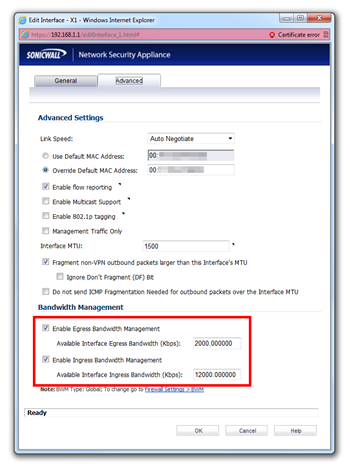
On the next screen you designate what bandwidth is available on this interface. (To ensure you didn’t switch egress/ingress numbers do a quick bandwidth check using http://www.speedtest.net/)
Next go to Firewall | Access Rules and Edit your LAN > WAN and WAN > LAN rules for Lync media (and other) ports. (You will want to assign the “Realtime” priority to these rules)

Now click on “Ethernet BWM” tab and
- check/Enable Outbound Bandwidth Management and set Bandwidth Policy to “0 Realtime”
- check/Enable Inbound Bandwidth Management and set “Bandwidth Policy” to “0 Realtime”

Now everything should be setup. Below you can go to Dashboard | BWM Monitor and see our traffic. The to graph will show Real-Time traffic and the bottom graph (note this picture is photo-shopped together) shows the Medium priority traffic (in our case everything else)

How Do I test that Ports Are Actually Open?
Please see my article “How to Verify Lync Edge Server Ports Are Open”: http://windowspbx.blogspot.com/2013/01/how-to-verify-lync-edge-server-ports.html
Is My Sonicwall Device Correctly Sized to My Environment?
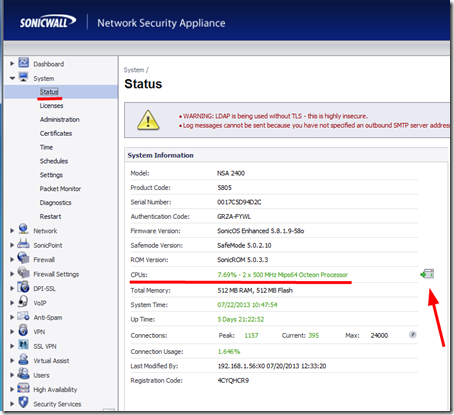
If you are noticing that your Sonicwall limits download speeds it could be that the Sonicwall device CPU cannot handle that bandwdith while doing DPI and you may need to upgrade to a unit with more CPU. You can check CPU on below screen. (And momentarily turn off DPI and/or IPS to test if unit can do full bandwidth then)
SIP Trunks Consistently Disconnect After Specific Amount of Time: Reinvites (Keep Alive) May Be the Culprit
SIP trunk providers will send a RE-INVITE (KeepAlive) after a specified amount of time. (For Intelepeer this is 15minutes if you don’t have Lync and 90 minutes if do have Lync). If you are noticing consistent disconnect at 90 minutes this means your Lync Server is not responding to this RE-INVITE and disconnecting the call. You can resolve this by having Intelepeer increase the RE-INVITE timer to a longer period. (preferably higher than what your longest calls are)
How to Setup 1 to 1 NAT?
This is a blog post all in itself. Watch for a post coming…
Conclusion
Bottom Line: Sonicwall and Lync work together just fine, but you need to understand both well.
Sonicwall will do 1 to 1 NAT’s just fine. Sonicwall currently does not do ALG but Lync Certified SIP trunk providers should be able to configure their side to avoid the need for ALG on your firewall. The biggest take away is that Sonicallwall VoIP features do not work on TCP traffic at this time.
________________________________________
Footnotes & Misc Links
QOS: http://help.sonicwall.com/help/sw/eng/6800/25/8/1/Firewall_qosSettings.html#1080295
SIP Trunk Traffic Notes:
- RTP seems to always use Sonicwall LAN>WAN rule. (Egress=From Lync Server; Ingress=From SIP Trunk/Remote Party)
- SDP tells Lync to do this
- Appears SIP signaling uses Sonicwall WAN>LAN rule
SIP Trunk Traffic Examine Notes
Typicall SIP trunk traffic: Note solid RTP from remote user to Lync user. (first arrow represents 1 SIP trunk call and second is second SIP trunk call.)
SIP trunk call put on hold by Lync user: Note that traffic stops from remote party and Lync MOH creates solid RTP to remote party.
Sonicwall Firmware Notes
MAC Address Manufacturer Look Up: http://aruljohn.com/mac.pl
PSTN Echo Test:+1 703-376-ECHO (3246)
Sonicwall Now Categorizes Lync Traffic as VoIP-APPS IPS signature category : Click Here


