TopBanner

Matt’s MSIgnite 2017 Skype for Business & Microsoft Teams Notes

IgniteSessionBRK3370

Here is where I’ll be keeping my notes about important announcements around Skype for Business & Microsoft Teams. You can always browse to http://bit.ly/mattignite17 for this article.

Will try to answer your burning questions about Skype for Business & Microsoft Teams

  • What New with Teams and Skype for Business?
  • What’s Microsoft’s story about Skype for Business & Microsoft Teams?
  • What Do I say about Skype for Business & Microsoft Teams?
  • What’s up with “Microsoft Phone System”?
  • etc.

Some Skype4B/Teams Resources:


Notable Microsoft Announcements/News

  • Monday – 25th
    • Microsoft Teams Will Evolve as the primary client … in Office 365 and replace Skype for Business Over Time” Click Here
    • Microsoft Teams Gets PSTN Calling Click Here
    • “Microsoft Teams Meeting Recording & Transcription in Preview for release soon…” – Session GS10 Click Here
    • UC Vision Keynote GS10 Indicates vNext Features (Join me in session BRK2035 Tues for more)
        • Refreshed Mainstream Support
        • Quality, Security & Performance Fixes
        • Refreshed Skype for Business Client
        • IT Pro & Voice centric release
        • Cloud Connected Analytics & Voice Apps
        • Improved Teams Interop
  • Tuesday – 26th
    • Microsoft will Deliver Skype for Business Server 2019. Here are the Features click here
    • Graph API Will Do Call Control & Media Eventually BRK2197 click here
    • Same Platform Used to Build CQ & AA Coming to Microsoft Teams Eventually. BRK2197 click here
  • Wednesday – 27th
    • Call Queues & Auto Attendants New Features Summary click here
    • Renaming Cloud PBX to Phone System & Other name changes click here
    • My Microsoft Tech Community Article on New Features in Skype for Business Server 2019 click here
    • Microsoft Teams Doesn’t Use SIP click here
  • Thursday - 28th
  • Friday – 29th


Interesting Microsoft Teams & Skype for Business Vendor Announcements

  • Embrava / Byrne Power & Data Busy Light in Outlet Click Here
  • Sonus Cloudlink for Microsoft Teams Announced Click Here
  • Polycom VoxBox USB/BT Speakerphone Video First Sighting Click Here
  • Audiocodes 445HD IP Phone Color Screen, LCD Button Click Here
  • Lenovo Introduces Skype Room System Video First Sighting Click Here
  • Polycom Indicates Hardware To Work With Microsoft Teams
  • Landis Technologies Introduces Attendant Console for Microsoft Teams Click Here


What I will be doing at Ignite 2017!

  • Doing a Discussion in BRK3370 on: What Microsoft Teams Means for Skype for Business Partners & Customers” – Sign up here.
  • Official MVP Blogger on several sessions: (see articles here)
    • Skype for Business vNext,
    • Call Queues & Auto Attendants
    • Microsoft Teams Adoption
  • Landis Technologies is Showing Attendant Pro at booth #1456
  • Meetings & Live Podcast Sessions
  • Seeing what’s new!
Microsoft Teams User Tip #19: Teams SnapChat Feature: Skype for Business IM’s Disappear After a Period of Time

image

It appears like Skype for Business instant messages entirely disappear after a certain amount of time. (appears like 24hrs to me, but thats a rough estimate)

Take a looks in Chats after 24hrs, and presto, Gone!


image

So, just be aware, if you use Teams to Skype for Business IM Chats, they will not be saved or searchable in Teams. (Teams makes this clear). Also, they entirely disappear like a SnapChat photo!

Winking smile

Microsoft Teams Get PSTN Calling & Becomes 1 Stop Communication App: How It Works

Microsoft Teams, with Guest Access and now PSTN Calling now reveals Microsoft’s ambition that Microsoft Teams can serve as a complete communication system for internal and external communications.

What does v1 of Teams calling look like?

Call | Contacts Tab

Can make calls. Notice the once window design. The call position indicates a call is on hold or the user has navigated away from the active call.


image

end.

Calls | History Tab

Call history is a simple list of calls. Very clearly indicated missed calls. A “More Actions” menu gives contextually relevant actions. (Chat for Teams users, Call Back for PSTN Calls)

image

end.

Calls | Voicemail Tab

test

image

1 shows the Visual Voicemail playback. 2 shows the transcription right inline without jumping to Outlook.

Dial Pad

It can be minimized.

image

Expanded

image

End.

Active Conversation Panel

Full screen by default.

image

“More Actions” button provides Hold, Transfer and Dial Pad (for DTMF).

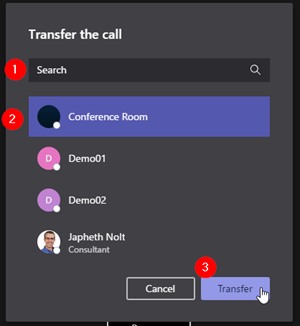
How to Transfer

More Actions | Transfer |

image

Search and select a Contact and then Transfer.

image

end.

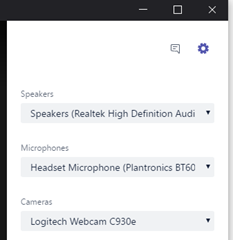
Changing USB Devices

image

Can only be done during a call at this time.

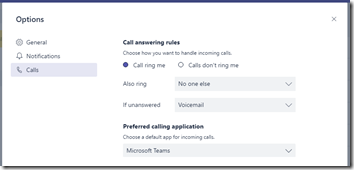
Configuration Options

Teams Avatar(lower left) |  Options | Calls

The options are around “Call Answering Rules” (aka call forwarding) and “Preferred calling Application”.

image

FAQ

Can Team “Calls” Handle more than one call at a time? Not at this time. It will disconnect to answer or make another call.


Summary

PSTN Calling in Teams effectively makes Microsoft Teams one client users can live in for internal and external communication. Perhaps more importantly for some, without Skype for Business.

Microsoft Teams User Tips #18: Keep Multiple Microsoft Teams Accounts / Tenants Open Simultaneously

image

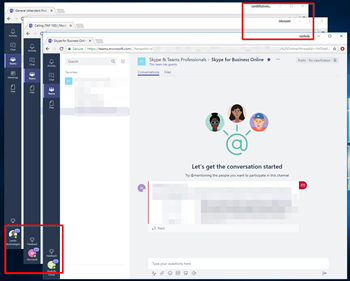
Several things conspire to make it ideal to be able to keep multiple Microsoft Teams Accounts/Tenants open simultaneously. Unfortunately, just opening several Browser windows and switching to the appropriate Accounts/Tenants doesn’t seem to work since all the browsers switch to the same Account/Tenant.

But we can achieve this using Chrome “People” feature. Essentially Chrome People seems to make separate browser sessions, which allows us to stay in multiple separate Accounts/Tenants.

Let’s get going…

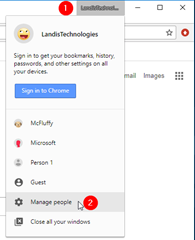
Using Chrome, click on the “People” button beside the Minimize/Maximize/Close button in the upper right of Chrome.

image

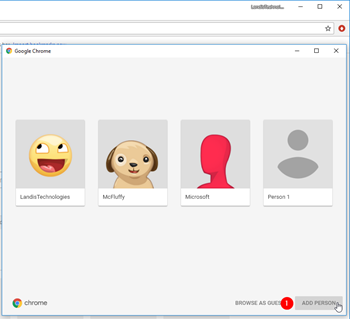
Add Person

image

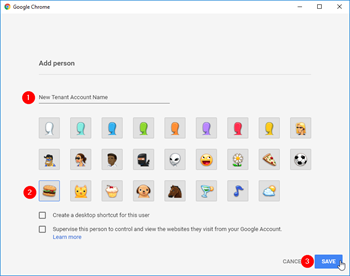
Type in a Name (to identify the Account/Tenant). Assign an avatar to identify it in your task bar if you wish.

image

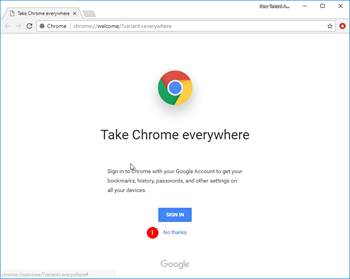
No need to create additional Google Account, “No Thanks”

image

Now sign into Microsoft Teams

image

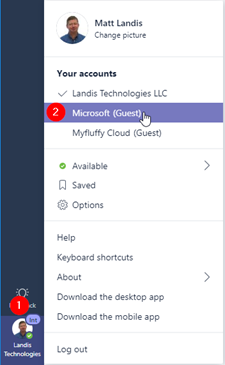
And switch to the Account/Tenant you want this “Person”/Session to show.

Repeat this for each Guest Accounts/Tenants you interact with regularly and you should be able to interact with all the Guest Accounts instantly.

How to Have this Session (Person) StartUp in Correct Account/Tenant

Now we want to assign this “Person” (Account/Tenant browser sesssion) an URL that opens the correct tenant.

An Account/Tenant URL like like this.
https://teams.microsoft.com/_?tenantId=72f988bf-86f1-41af-91ab-2d7cd011db47

When you switch between Accounts/Tenants in Microsoft Teams this URL is shown briefly and you can copy it. We want to copy this URL and make it the default startup web page for this Session.

So let’s switch the Account/Tenant we want to work with. Do this in Teams:

image

Now copy that URL…

image

Now go to Chrome, then Customize & Control Chrome | Settings |

image

Go to On startup | Open a specific page or set of pages | Add a new page | and copy the URL we got above.

image


Summary

Now you can stay in in multiple Accounts/Tenants simultaneously.

image

What this solution does:

  • Be in multiple Accounts/Tenants at the same time
  • Keep Presence (roughly) Correct.

What this solution does not (yet) do:

  • Automatically sign-in using correct credentials
  • Allow users to make audio/video calls
  • Windows are not tabs in one browser
  • etc.

If you have any ideas on how to make this solution even better, please comment!


To see more Microsoft Teams User Tips:
http://windowspbx.blogspot.com/search/label/MicrosoftTeamsUserTip

.[Video] Learn Microsoft Teams in 5 Minutes:
http://windowspbx.blogspot.com/2016/11/learning-microsoft-teams-in-5-minutes.html

Microsoft Teams User Tip #17: Moderation & How to Delete Other User’s Messages

Things are great, users are really making use of Microsoft Teams and then…you would like to “cleanup” some messages in a Team channel. How do you do that?

By default users can only delete their own messages.

image

But not other users.

image

If you would like to configure Microsoft Teams so Team Owners can delete other user’s messages, you are going to have to nicely ask your Administrator to make a change in the Office 365 Admin Center. (NOTE: this is a Microsoft Teams wide setting)

This is what they will need to do:

In the Admin Center

Admin Center | Settings | Services & add-ins | Microsoft Teams.

image

Now expand Messaging and turn “Allow owner to delete all messages” = ON. Save.

In the Team

In the Microsoft Teams client, go to Teams.

image

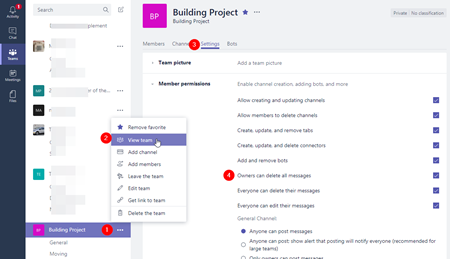
Now select More Options | View USers | Settings | & enable “Owners can delete all messages”.

Now Owners should be able to delete other user’s messages. Let’s Check:

image

Sure enough! Great.

To see more Microsoft Teams User Tips:
http://windowspbx.blogspot.com/search/label/MicrosoftTeamsUserTip

.[Video] Learn Microsoft Teams in 5 Minutes:
http://windowspbx.blogspot.com/2016/11/learning-microsoft-teams-in-5-minutes.html